
Note sync
Sync is a TinyNote Pro feature. In Settings → Sync, choose one method:
- Git sync: connect the note library to TinyNote official, GitHub, Gitee, GitLab, Alibaba Cloud Codeup, AtomGit, or a custom Git host. You can add more than one platform.
- Cloud drive sync: put the library in a local folder already synced by iCloud, Nutstore, OneDrive, or a similar desktop client
When to use it
- The same notes on multiple computers
- Back up the library to GitHub, Gitee, GitLab, Alibaba Cloud Codeup, AtomGit, or similar
- You want commit history and diffs, not just folder copies
Sync covers files in the library (mostly .md and workspace config). Access tokens stay on the device and are never pushed.
Git sync
- Confirm the library folder in Settings → Data
- Open Settings → Sync and choose Git sync
- Click Add sync source and pick TinyNote official, GitHub, Gitee, GitLab, Alibaba Cloud Codeup, AtomGit, or custom Git
- Follow the in-app sign-in guide, or paste an access token
- Create a private repository or choose an existing one
TinyNote initializes and connects the repository in the app. You do not need to install Git, and you do not need to run git init or git pull in a terminal.
You can add multiple sources. Pull uses the primary source; commit-and-push updates every connected source.
Authorization
- GitHub / GitLab: one-click browser sign-in when OAuth is configured, or paste a personal access token
- TinyNote official / Gitee / Alibaba Cloud Codeup / AtomGit: open the token page from the app, grant repository access, then paste the token
- Custom Git: HTTPS URL plus a token or password
Tokens stay on this device. On a new computer, sign in again.
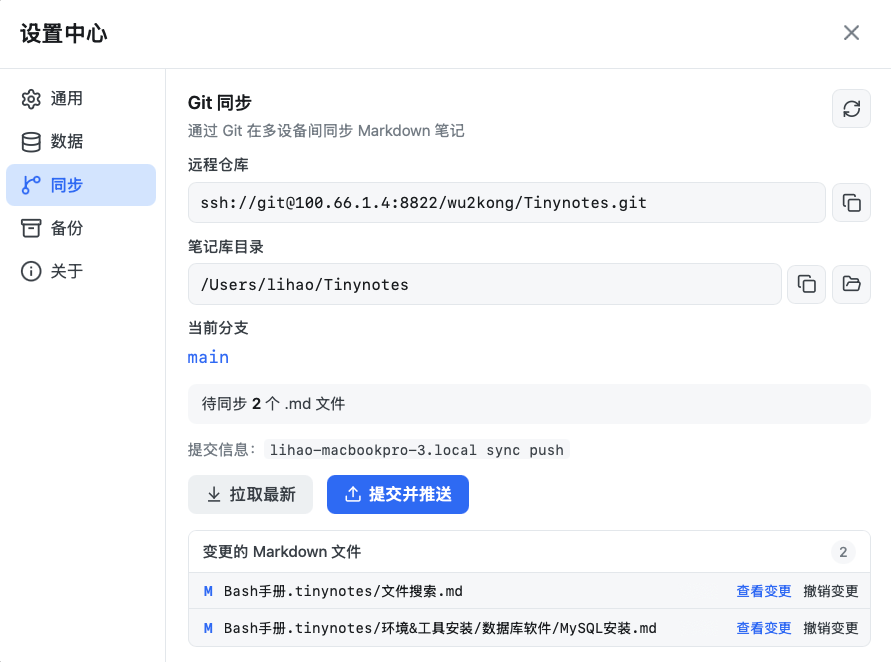
Daily workflow
| Button | What it does |
|---|---|
| Pull latest | Update notes from the primary source |
| Commit and push | Commit changes and push to all sources |
| View changes | Preview a file diff |
| Revert change | Restore a file to the last commit; new files are deleted |
Pull before you edit, then push when you finish. If the same note changed on both sides, Pull keeps the cloud version in the original file and saves your local content as a "conflict version" copy so nothing is lost. If authorization fails, sign in again on the Sync page.
Desktop and web
- Desktop includes Git, so you do not need to install Git. Sources added by the wizard use HTTPS tokens
- Web also includes Git and supports HTTPS + token only (a CORS proxy is required in the browser)
- SSH is not supported. If a remote still uses an SSH URL, switch it to HTTPS and add a token again
Mobile app
On iOS and Android, open Settings → Sync → Git sync, paste the same HTTPS URL and access token, then pull or commit-and-push. You do not need to install Git. SSH is not supported. Conflicts match desktop: the cloud version stays in the original file, and local content is saved as a conflict copy. Tokens stay on the device.
Cloud drive sync
Use this if you do not want Git. TinyNote reads and writes the folder you choose; the installed cloud-drive client uploads and downloads.
- Sign in to iCloud, Nutstore, OneDrive, or similar on this computer, and confirm that folder is syncing
- Open Settings → Sync and choose Cloud drive sync
- Click Choose cloud folder and select that synced directory
Switching folders does not delete existing notes. Detected paths show the current mode (iCloud, OneDrive, Dropbox, Nutstore, Baidu, WebDAV, or local).
Do not edit the same note on two devices at once: the cloud client may overwrite one side, and TinyNote will not keep a conflict copy the way Git sync does. Use Git sync if you want commits and diffs.