
Backup
Backup packs the library and config into a zip. Use it if you do not want Git, or as an extra archive. Available on the free plan.
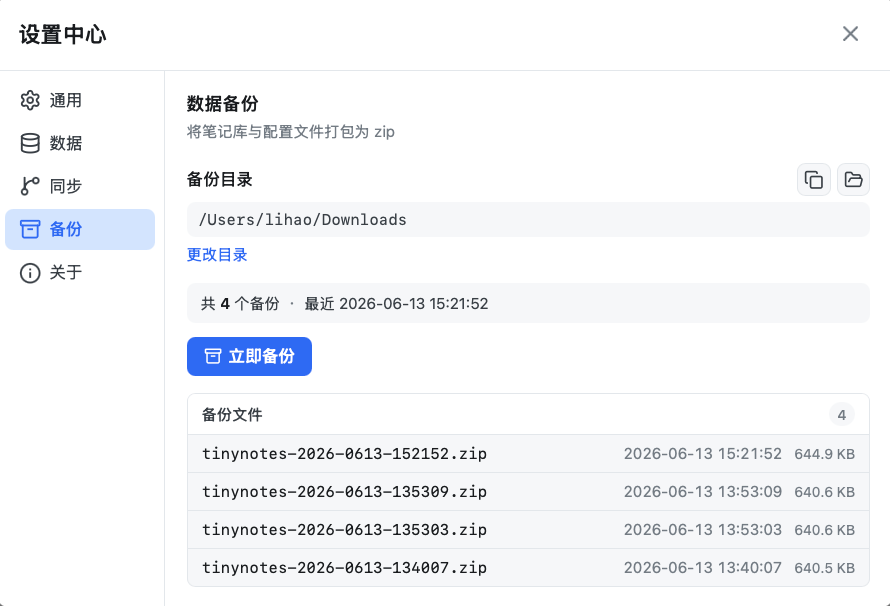
Choose a backup folder
- Open Settings → Backup
- Pick a folder — preferably not the same disk or cloud-sync folder as the library
- Click Backup now
You must choose a folder before the first backup.
What is included
- Spaces, folders, and note files in the current library
- Related config files
Zips appear in the backup folder. The list shows name, time, and size.
Restore
The Backup page is for creating and listing archives. To restore:
- Unzip the archive
- Check that the library folder is intact
- Point Settings → Data at the extracted library, or copy files back to the old path and restart TinyNote
Restore overwrites current files. Keep a copy of the live library first.
Backup vs Git
| Local backup | Git sync | |
|---|---|---|
| Plan | Free | Pro |
| Shape | zip snapshot | commit history |
| Multi-device | Copy zips by hand | Pull / push |
| Undo | Restore the whole archive | Diff and revert per file |
| Use | Periodic safety net | Daily multi-device flow |
You can use both: Git day to day, plus a zip on a schedule.